 Mantys Core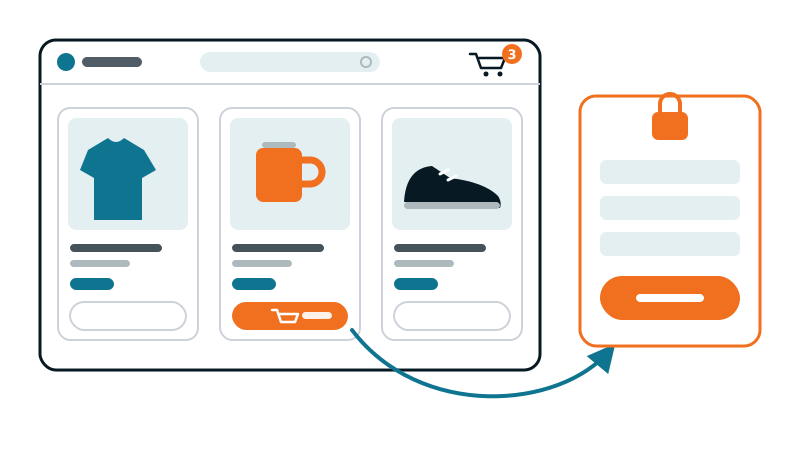
A slow store loses sales twice: once on the product page, when the visitor leaves before it loads, and once at checkout, when a broken cart or a frozen payment field sends them away. Most performance advice treats a store like a blog. That is exactly how carts end up empty, prices end up wrong, and payment buttons stop responding.
This guide is the map. It shows what can be optimized on a store, what must never be, and links to the detailed guide for each problem.
A store is two sites in one
The catalog is the home page, the category pages and the product pages. Every visitor sees the same thing, so these pages can be cached, trimmed and deferred like any other page.
The transaction is the cart, the checkout and the customer account. Every visitor sees their own content: their items, their address, their orders. These pages must never be served from a cache, and optimizations that rely on a snapshot of the page do not apply to them.
And there is a third state in between: a visitor browsing the catalog with items in their cart. The page looks public, but the header shows their cart. WooCommerce marks that visitor with cookies such as woocommerce_items_in_cart and wp_woocommerce_session_, and a correct page cache steps aside for them.
A page cache that respects the cart
A page cache is the biggest win on a store, and the most dangerous setting. Three rules:
- Exclude the transactional pages: cart, checkout and every account page. Serving a cached checkout can show one customer the details of another.
- Bypass the cache for visitors with a cart or a session: otherwise the header shows an empty cart to someone who just added a product, or another visitor’s cart count.
- Watch the query strings:
add-to-cartlinks, tracking parameters such asutm_sourceorgclid, and filters. Each distinct URL can become a cache miss.
The geolocation trap. WooCommerce’s “Geolocate (with page caching support)” option adds a v parameter to URLs so each country gets its own cached version. If you do not need prices or taxes by country, this mode fragments your cache for nothing. If you do need it, know that every catalog page now exists in as many versions as there are locations.
Cookies set for nothing. A new visitor with an empty cart should receive no cookie at all on a catalog page. One Set-Cookie header is enough for most CDNs, Cloudflare included, to refuse to cache the page, and for many page caches to step aside. The usual culprits: a plugin that starts a WooCommerce session for every visitor (wishlists, currency switchers, recently viewed products), or a cart counter cookie written even when the cart is empty. Check it as a new visitor:
# A catalog page, as a new visitor with an empty cart: no line should come back.
curl -s -o /dev/null -D - https://your-store.com/product/any-product/ | grep -i "set-cookie"
If a cookie comes back, find the plugin that sets it and make it wait until the visitor actually adds something to the cart.
Cart fragments: the request on every page
The mini cart in the header is kept up to date by an AJAX request, wc-ajax=get_refreshed_fragments, sent by wc-cart-fragments.js. It is never cached, so it hits PHP and the database on every page view where it runs.
Since WooCommerce 7.8, the script is no longer loaded on every page by default: only where the classic mini cart widget needs it. Many themes still load it everywhere. Check the Network tab of a catalog page: if the request fires on pages without a mini cart, limit it to the pages that have one. Do not simply remove it where the mini cart exists, or the cart count stops updating.
When optimizations make the mini cart vanish or stop opening, the cause and the fix are detailed in our guide on the WooCommerce mini cart.
Product images: the heaviest part of the catalog
- Thumbnails in category grids: WooCommerce outputs several sizes; the browser only picks the right one if the
sizesattribute matches the grid. A wrongsizesmakes phones download desktop thumbnails. See our srcset and sizes guide. - A misplaced priority: since WordPress 6.3, the first large image of a page gets
fetchpriority="high". On a home page or a category page, that is often the first product thumbnail of a grid far below the fold, which then competes with the real main image. - The main product image is usually the Largest Contentful Paint of a product page. It must not be lazy loaded, and it may differ between mobile and desktop: our guide on the LCP image per device explains how to preload the right one.
- Galleries, zoom and lightbox scripts load on every product page. They are good candidates for a delay, as long as the add to cart button and the variation selectors keep working.
CSS and JavaScript without breaking the shop
Trimmed CSS. Used-CSS tools render one state of the page. On a store, many elements only appear after an action: the opened mini cart, a selected variation, a quantity error, a coupon field. Their styles get removed. How to find and put back the missing rules is in our guide on missing styles. And on the cart, checkout and account pages, do not trim the CSS at all: the snapshot is taken logged out, with an empty cart, and misses everything the customer sees.
Delayed JavaScript. Never delay the add to cart, the variation scripts, the checkout scripts or the payment fields (card forms, wallet buttons): a payment field that waits for a first interaction is a lost order. Delay what is not needed to buy: chat, reviews widgets, pop-ups, marketing pixels. The method to find what a delay broke is in our JavaScript delay guide, and a consent banner that loads late is covered in our guide on consent banners.
Layout shift. Product grids that load their images without dimensions, sale badges and review stars that appear late, and sticky add to cart bars all move the page. The causes and fixes are in our CLS guide.
Safe on a store
Cache on catalog pages for anonymous visitors, right-sized images, delayed marketing scripts, trimmed CSS on catalog templates with the shop’s states kept.
Risky on a store
Cache or trimmed CSS on the cart, checkout or account, delayed payment or add to cart scripts, a removed cart fragments script where the mini cart is live.
The pages that are never cached
The cart and the checkout are always generated by PHP for each visitor, so their speed is the raw speed of your server and database. That is where hosting, PHP version and database health show. A few points to check:
- Recent WooCommerce versions store orders in dedicated tables (High-Performance Order Storage), much faster than the old post-based storage on stores with many orders.
- The scheduled actions tables and expired customer sessions can grow large on a busy store; check their size and cleanup.
- Every plugin that hooks into the cart or the checkout runs on every one of these requests: shipping calculators, upsells, fraud checks. Measure the checkout with and without them on a staging copy.
Measure the store, not just the home page
- Test a category page and a product page on mobile, logged out, as a new visitor.
- Test again with an item in the cart: the cache should step aside and the page should still be fast.
- Walk the full purchase path after every change: add to cart, change a variation, apply a coupon, reach the payment step. Do it on a staging copy or in your payment gateway’s test mode: a test order on a live store is a real order.
- Read the field data, not only the lab score, as explained in our guide on lab and field data, and change one setting at a time, as in our method for optimizing without breaking.
With Mantys Core
Mantys Core can run your whole performance layer, cache included, or sit next to the setup you already have. On WooCommerce, the line between catalog and transaction is built in:
The page cache never stores the cart, the checkout or the account pages, and steps aside for visitors who have a cart or a WooCommerce session.
Critical CSS and used CSS are never applied to the cart, the checkout or the account pages.
Instant navigation never prefetches the cart, the checkout, the account or add to cart links, and the cache warm-up never visits them.
Product thumbnails in grids lose the misplaced high priority WordPress gives them, so the real main image keeps its bandwidth.
WooCommerce’s own stylesheets are protected from unload rules, and every setting can differ between product, category and content templates.
You keep the catalog fast and the checkout untouched, without maintaining a list of exclusions by hand.
In summary
- Draw the line first: the catalog is optimized hard, the cart, checkout and account are never cached or trimmed.
- Bypass the page cache for visitors with a cart, and watch query strings and geolocation.
- An empty cart must not receive any cookie: one Set-Cookie is enough to stop the CDN from caching the page.
- Load cart fragments only where a live mini cart needs them.
- Right-size product images, keep the main image eager, and fix the priority of grid thumbnails.
- Never delay add to cart, variation, checkout or payment scripts; delay the marketing layer instead.
- Test the whole purchase path, on staging or in test mode, after every change.
Comments
Stuck on a similar problem? Describe your setup and what you see. We read every comment and answer.
No comments yet. Be the first to share your case.