 Mantys Core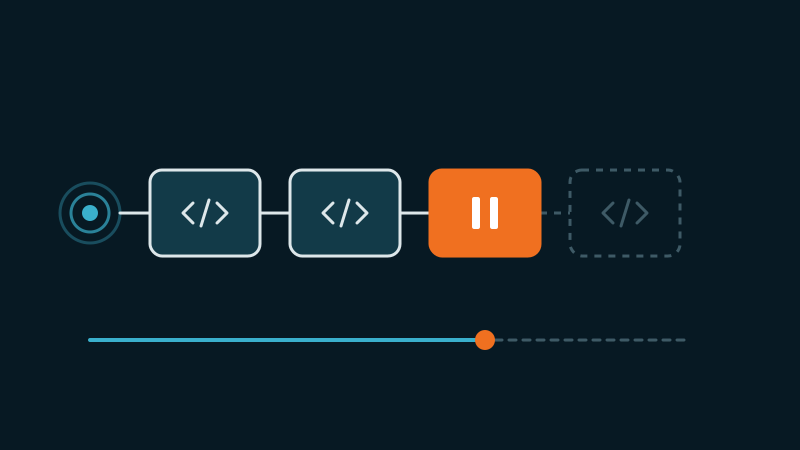
You turn on “Delay JavaScript execution”, the PageSpeed report jumps, and then the messages start. The mobile menu does nothing. The cookie banner will not close. The contact form spins forever. The slider on the home page is blank. The chat bubble is gone. Or, a week later, analytics shows a drop in sessions that nobody can explain.
The usual advice is a list of exclusions to paste, or switching the option off. Both work, and both throw away the gain without telling you what actually broke. This guide gives you the method instead: why the delay breaks things, how to read the symptom, and how to find the one script to take out.
What the delay does to a page
Normally, every script on the page downloads and runs while the page loads. With a JavaScript delay, the scripts are parked: their tags are rewritten so the browser ignores them. A small loader waits for the visitor to do something (move the mouse, scroll, tap, press a key), or for a timer to run out, and only then puts the scripts back, one after the other.
That is why the lab score climbs: during the test, almost no JavaScript runs. It is also why things break: every script now runs later, in a page that has already finished loading, and only if the loader gets that far.
The five ways it breaks, and their signature
1. A dependency is missing. A script is excluded from the delay (so it runs at load) but something it needs is still parked. The classic case: a menu script runs while jQuery does not exist yet. Signature: a red error in the console, such as jQuery is not defined, $ is not a function or Cannot read properties of undefined.
2. The page event already fired. Plenty of scripts wait for DOMContentLoaded or window.onload before they start. When a delayed script arrives, those events are long gone, so its setup code waits for something that will never happen. Signature: no error at all, the feature simply never starts. Sliders, galleries and lightboxes are frequent victims.
3. The first click is swallowed. The visitor’s first tap is the interaction that wakes the loader. The scripts are not there yet when that tap lands, so it does nothing. Signature: it always works on the second tap. We covered this case in detail in the burger-menu guide.
4. The chain is stuck on one script. Delayed scripts are usually put back in order, one after the other, so dependencies keep working. If one of them is held (an ad blocker, a DNS filter or a company proxy that neither answers nor refuses), everything after it waits forever. Signature: intermittent, only for some visitors, never on your machine. Often it is the footer features that die.
5. The visitor is never counted. If your analytics tag is delayed, a visitor who reads the page and leaves without interacting (and before the timer) never loads it. Signature: no visual bug, just fewer sessions and a higher share of short visits missing from the reports.
Step 1: confirm the delay is the cause
Switch the delay off, clear every cache layer (page cache, host cache, CDN), and test again in a private window. If the feature works, the delay is the cause. If it still fails, stop here: the problem is elsewhere, often a CSS optimization that stripped the styles of a hidden element (see the critical-CSS guide).
Then switch it back on and reproduce the bug properly:
- Mobile emulation in DevTools, not your desktop view. Many setups keep a separate optimized version per device.
- A clean private window, no extensions, so you see what a first-time visitor sees.
- Tap the broken element first, without moving the mouse or scrolling before. That is the only way to see case 3.
- Then once more with an ad blocker on, to surface case 4.
Step 2: find the script behind the broken feature
Open DevTools before reproducing, then read three places.
The console. Any red error after your interaction points to case 1, and the file name on the right of the error is your first suspect. Click it: DevTools shows the exact line.
The element’s event listeners. Right click the broken button, choose Inspect, then open the Event Listeners panel. It lists every handler attached to the element and the file that attached it. If the list is empty after your interaction, the script that should attach the handler never ran (case 2 or 4).
A search across all loaded files. In the Sources panel, search every file (Ctrl+Shift+F, or Cmd+Option+F on a Mac) for the class or id of the broken element, for example menu-toggle or cky-btn-accept. The file that references it is the one that drives it.
// Paste in the console after the page has loaded, before any interaction,
// then again after your first click. Adjust the type to your tool's markup.
[...document.querySelectorAll('script[type]')]
  .filter(s => !/^(text|application)\/(javascript|ld\+json|json)$|^module$/.test(s.type))
  .map(s => s.src || s.dataset.src || (s.textContent || '').slice(0, 60))
If the script you identified is still in that list after your interaction, the chain never reached it: look at what sits just before it (case 4).
Step 3: exclude the whole chain, not just the file
A script rarely works alone. Before excluding it, list what it needs, in the order the page source shows them:
- Its libraries: jQuery, and sometimes jQuery Migrate or the theme’s core script.
- Its configuration: WordPress often prints a small inline script just before the file, with an id ending in
-js-extra(for examplevar wpcf7 = {...}for Contact Form 7). The file cannot run without it. - Its own file, last.
Exclude them together, and target each one by a unique piece of its URL (such as /contact-form-7/ or jquery.min.js) rather than by a generic word. A fragment like slider can match far more files than you think, and each extra match gives back part of the gain.
Step 4: when you cannot find it, bisect
On a heavy page with 60 delayed scripts, reading each one takes an afternoon. Bisecting takes six tests. Exclude the first half of the delayed scripts and test. If the feature works, the culprit is in that half; if not, it is in the other. Halve again, and again: 60, 30, 15, 8, 4, 2, 1.
Two rules make it reliable: purge every cache layer between two tests, and keep the half that contains jQuery together with jQuery, or every test will fail for the wrong reason.
The usual suspects, family by family
Menus, accordions, tabs. Exclude the chain (jQuery plus the theme script), or give the menu a tiny standalone script. The trade-off is explained in the burger-menu guide, and why the menu sometimes shares a file with the rest of the theme in the guide on monolithic theme scripts.
Cookie banners and consent tools. Do not delay them. The banner has to be usable at once, and consent has to be recorded before any tag decides what to load. These scripts are small, so excluding them costs little. If your tags use consent mode, the default state has to be set before the tags run too. For Axeptio in particular, see how to make Axeptio load faster.
Forms and captchas. Exclude the form plugin’s chain on the pages that have a form, not across the whole site. A captcha that only loads when the visitor starts typing is a good compromise.
Sliders and anything above the fold. If it is the first thing the visitor sees, delaying it gives a blank or unstyled hero and often a worse Largest Contentful Paint. Anything visible at load should not be delayed, only what sits below.
Chat widgets and pop-ups. These are exactly what the delay is for. Keep them delayed. If the launcher must be visible without interaction, give that one script a short timer rather than excluding it.
Analytics and tags. Delaying them gains little on a well configured tag and costs data. Decide it consciously: either the tag loads early and every visit counts, or it waits and you accept counting only the visitors who interact.
Narrow exclusion
One chain, identified by URL, on the templates that use it. The rest of the page stays delayed and the gain is kept.
Broad exclusion
“Exclude jQuery everywhere”, a generic keyword, or a safe mode that reloads everything early. The bug is gone, and so is most of the gain.
After the fix: check what you cannot see
- Test with an ad blocker once more: a fix that only works on a clean browser still breaks for part of your visitors.
- Compare a week of sessions before and after turning on the delay. A drop without a traffic reason is case 5.
- Retest after every theme or plugin update: file names change, and an exclusion by URL can stop matching.
- And follow the order that keeps a site safe: the harmless optimizations first, the risky ones one at a time, as in our method for optimizing without breaking.
With Mantys Core
Mantys Core can run your whole performance layer, cache included, or sit next to the setup you already have. Its JavaScript delay is built around the breakages above:
The setup code of the common consent tools, the tag manager and the analytics tag are left out of the delay by default, so consent state and tags start at load. If your banner loads its own file from a separate script, you add that one to the exceptions.
Delayed scripts are put back in the order of the page, so a library always runs before what depends on it.
A script that is held by a filter or a proxy cannot freeze the rest: after a short wait, the chain moves on to the next one.
An interaction that lands while the page is still loading waits for the whole page, so no script at the bottom is left behind.
Exceptions are declared by URL fragment and can be set per template, so the slider script is excluded on the home page only and stays delayed everywhere else.
Independent third parties can get their own short timer instead of a full exclusion.
You still decide what matters on each page. The platform makes sure one exclusion stays one exclusion.
In summary
- A JavaScript delay runs every script later, in a page that has already loaded, and only if the loader gets there.
- Five breakages, five signatures: a console error, a feature that never starts, a second tap, a failure for some visitors only, and fewer sessions.
- Confirm with the delay off, then find the script through the console, the element’s event listeners and a search across files.
- Exclude the whole chain (library, inline configuration, file) by URL fragment, and only where it is needed. Bisect when you are lost.
- Never delay the consent tool or anything visible at load; keep chat widgets and pop-ups delayed.
Comments
Stuck on a similar problem? Describe your setup and what you see. We read every comment and answer.
No comments yet. Be the first to share your case.